briDJe User Manual
Playlists
Last updated
Sidebar basics
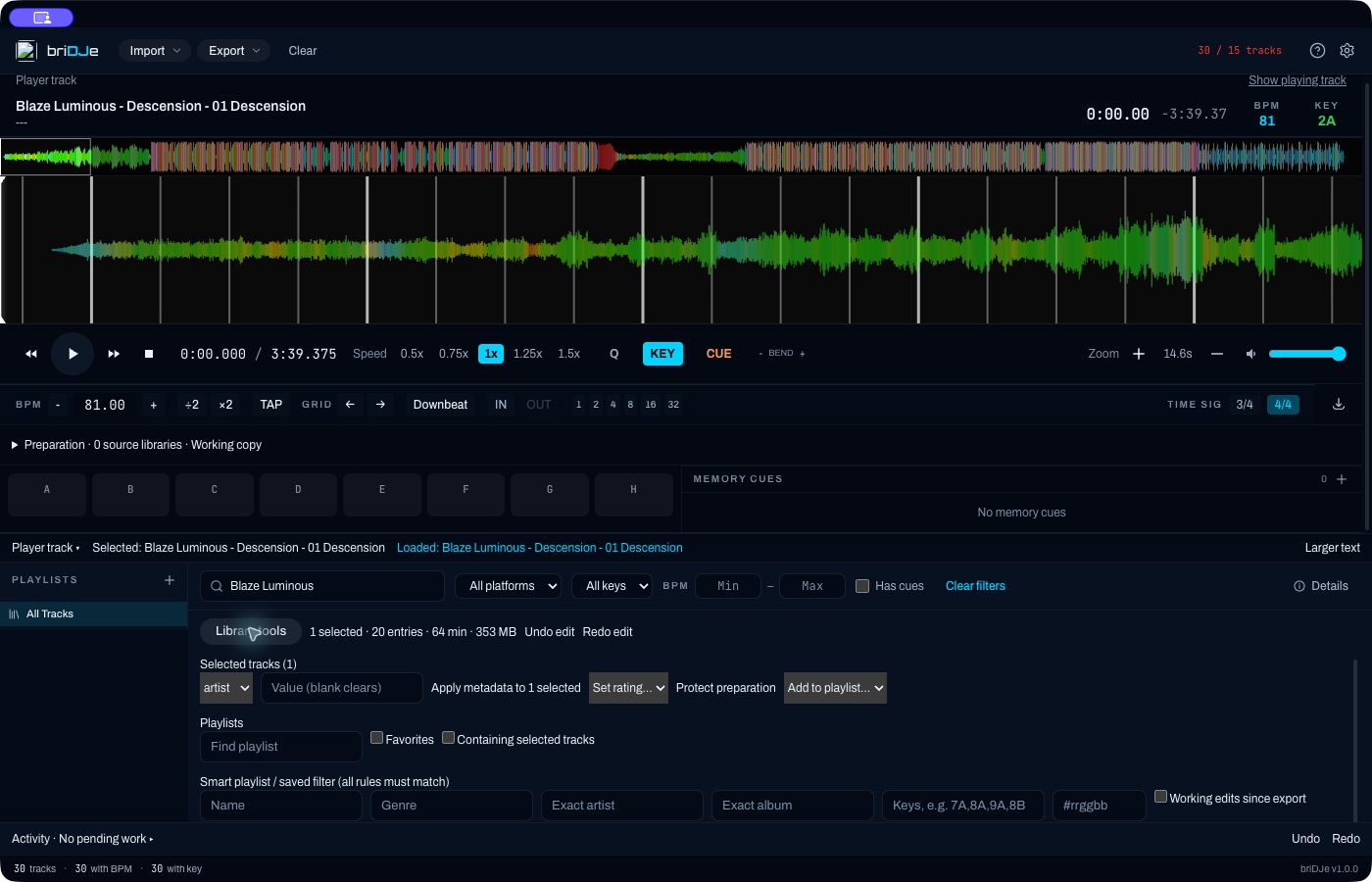
The sidebar lists All Tracks and your playlists. Click + for a new playlist; right-click a playlist to rename or delete it, and to create a folder where offered. To add tracks, select them (Cmd/Ctrl+click, Shift+click, Cmd/Ctrl+A) and use the Library tools playlist dropdown (Library and Player).
Use Library tools to set favorite, color, sidebar position or folder. Avoid moving a folder into itself or its descendants. A folder’s running order includes its descendants.
In the current playlist, set a 1-based position and press Enter to insert or move the selected tracks. Removing from a playlist never deletes audio.
Smart playlists
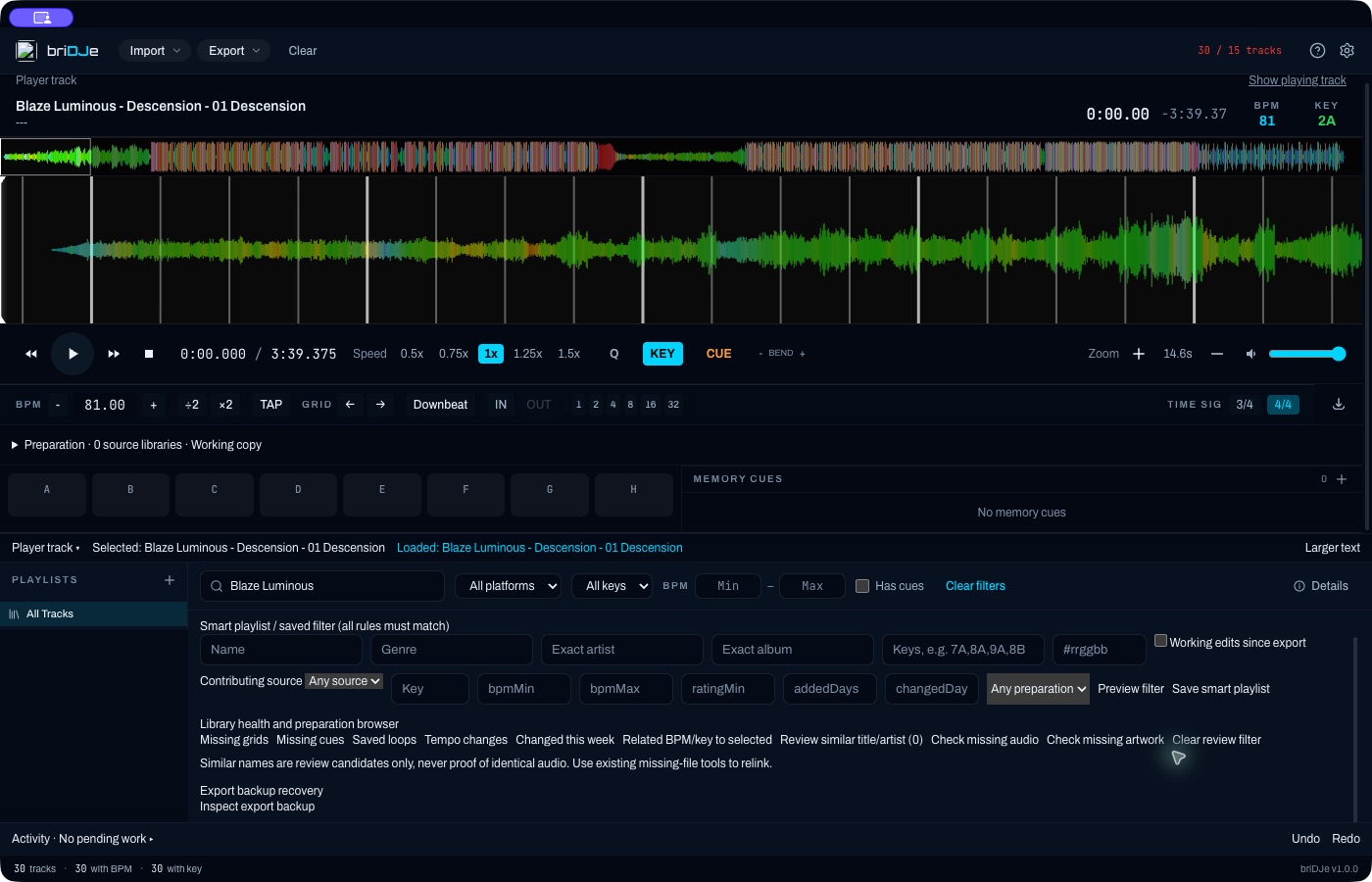
A saved filter matches all of its rules. Rules include name, genre, exact artist or album, compatible keys, color, key, source, BPM bounds, minimum rating, days since added or changed, missing grid or cues, and working edits since export. Click Preview filter, then Save smart playlist.
In briDJe these rules stay dynamic. On export they become a static snapshot of the current members. Native smart rules from another app are not executed by briDJe. Some adapters keep native rule files as opaque data, but briDJe makes no cross-platform rule promise.
Exporting playlists
Export includes the selected playlist leaves and their ancestors. Duplicate tracks count once. You can export the entire library or add unfiled tracks (Exporting and Backups).
File names are mapped deterministically, and collisions are reported in the preview. Check the resulting folder structure in VirtualDJ rather than assuming every hierarchy appears identically.
Recovering a deleted playlist
Open Library tools, Load recovery history, then Restore. This history is persistent and separate from undo.